Using Your iPad with Bose Sound Dock

Using Your iPad with Bose Sound Dock

If you have an older Bose Sound Dock for your iPod or iPhone, you may be disappointed that it doesn�t work with newer devices. Somewhere along the way, Apple changed how iDevices get charged. If your Sound Dock uses the older FireWire charging scheme, but your i-device uses the newer USB scheme, you�ll get a curt message that charging is not supported with this accessory.

All iPads use the new USB charging scheme, but beyond that, an iPad won�t even fit in the Sound Dock.
Bose-iPad Overview
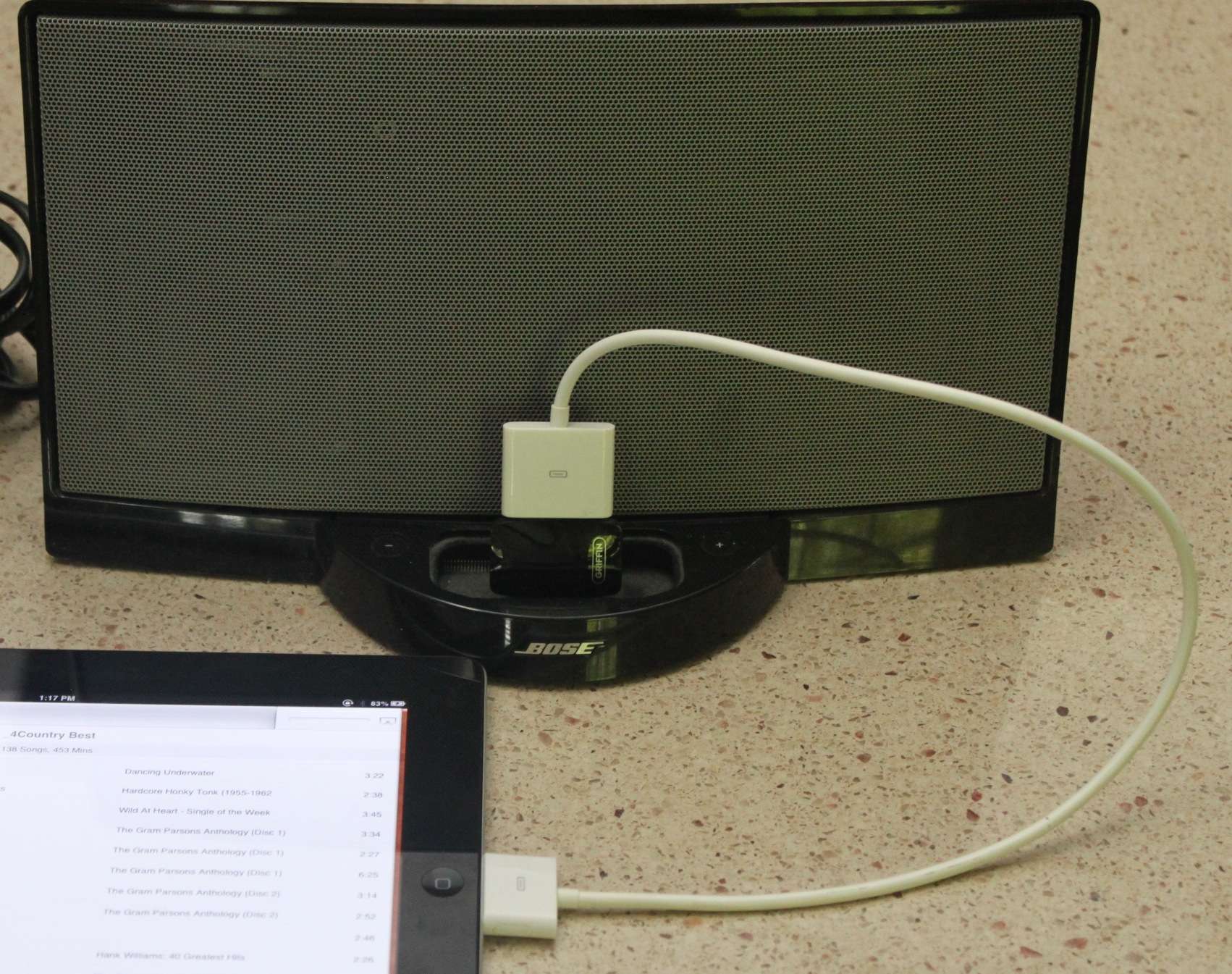
Original Bose Sound Dock cabled to iPad


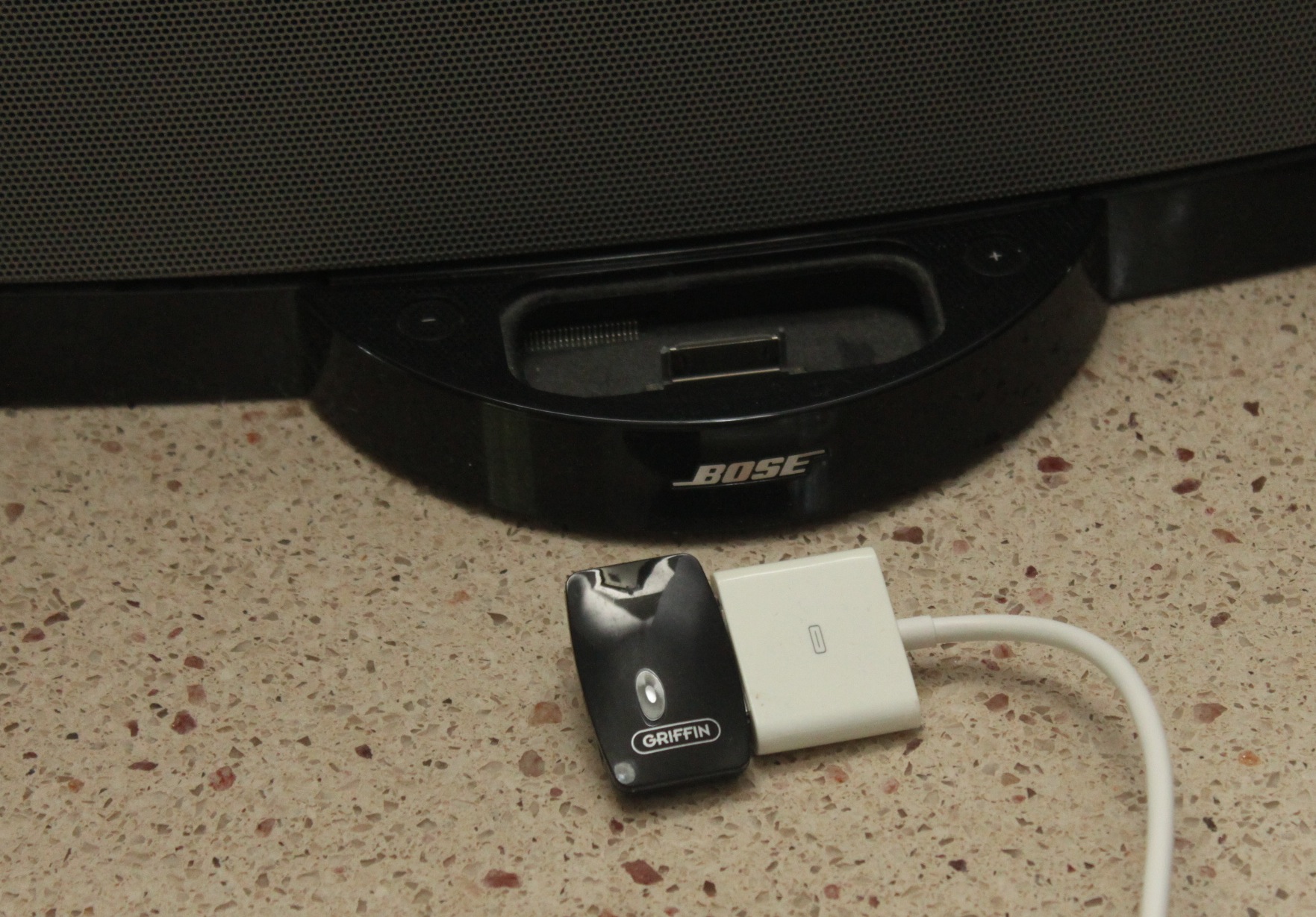
So, here�s a pair of inexpensive gadgets that will overcome these problems. I used the 3031-FWUSB Charge Converter from Griffin Technology. This is hard to find, but a similar item is this one from Scosche.

Next, you need a short cable to free your iPad from the confines of the dock. It might not be a bad idea for the iPhone also, since it gets a bit precarious balanced on top of the charge adapter. I got the RadTech Dock Extender. Unless you need a longer one for some reason, get the shortest cable available.
Hardware
For this set-up, order matters. The charge adapter goes into the dock, followed by the cable into the charge adapter, and the other end of the cable to your iPad, etc. If you reverse the order and put the charge adapter on the other end of the cable, it won�t charge.

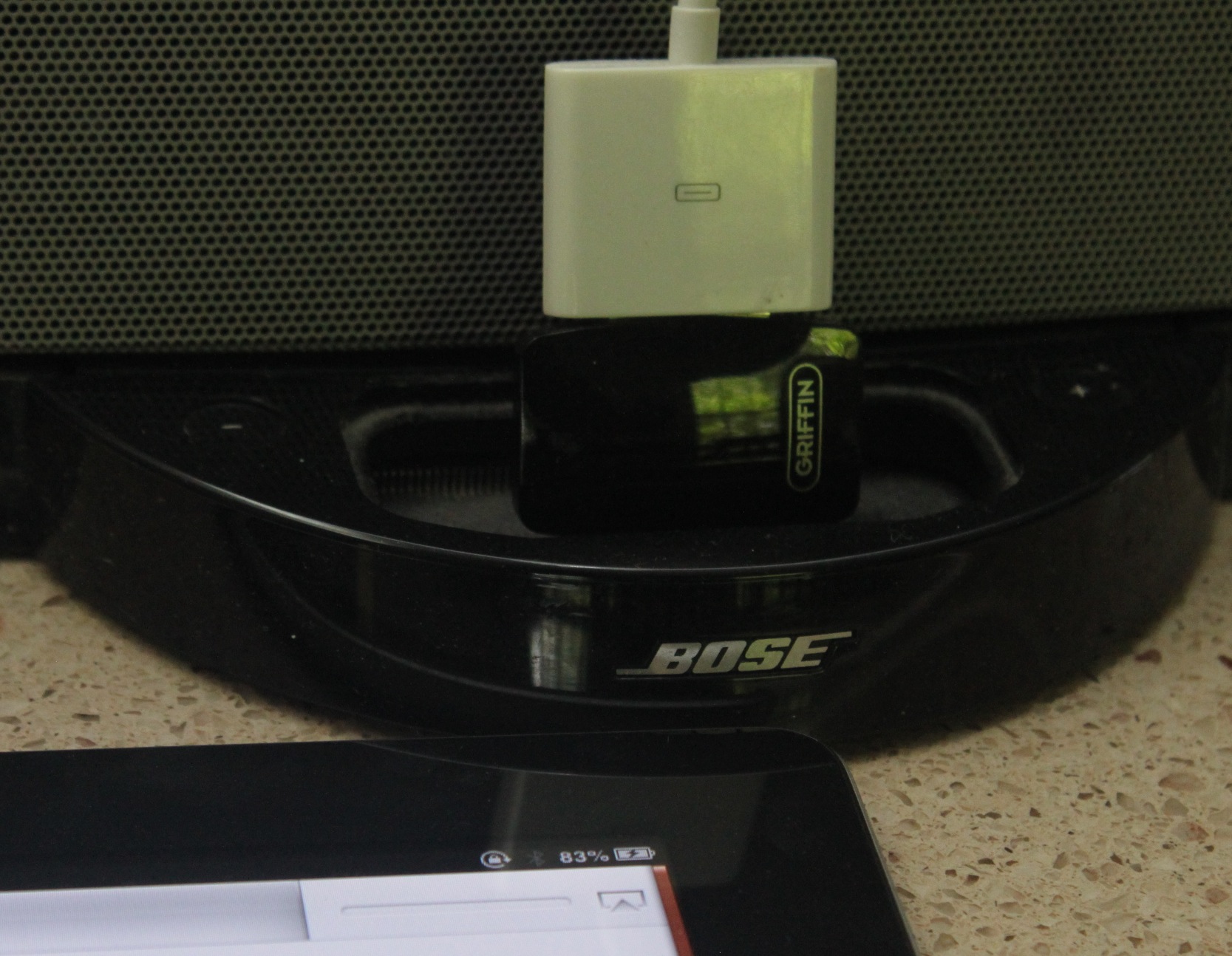
So, you should have something that looks like this:
It Charges
The iPad (2) Charging with the Bose Sound Dock & Adapters

The Bose Sound Dock is a great-sounding accessory. The right adapters keep it playing with your newer gadgets. The same general idea can keep some of your other accessories functioning. This might work with some older car docks or accessories as well.

I got a report that the following adapter worked with an iPhone 4S and the old Bose Sound Dock:
CableJive dockStubz Charge Converter and 30-pin Pass Through Adapter for iPhone, iPod, and iPad.

This also worked with the extender cable above, although the cable isn�t strictly necessary for the iPhone like it is for the iPad. I know that the setup pictured works with iPad versions 1 and 2.

This article is a re-post originally published in 2010, reproduced here after the blog recovered from �some Indonesian junk that was going around. (Hacked by Indonesian script kiddies.)�
 

How to Listen to Audiobooks on an iPod

Why should anyone need instructions on listening to audiobooks on an iPod … this should just work, right? This tip is not about downloading the audiobooks, or installing them on your iPod. This is about accessing and playing them once they are in your iPod. You’ve bought your audiobooks, you’ve put them in iTunes, you’ve synced your iPod. iTunes says your audiobooks are synced. Now, you’re looking at your iPod, and where the heck are they? By default, they don’t seem to appear anywhere except maybe (temporarily) in “Recent Items”. �They don’t appear anywhere under Music, and since they aren’t music, that sort of makes sense.

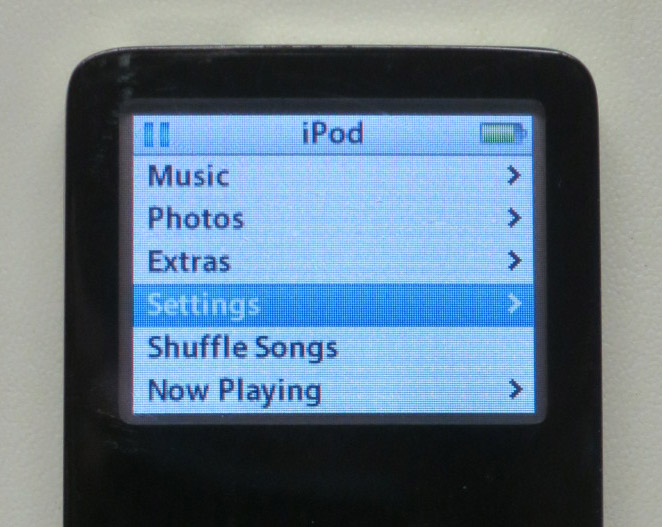
There really ought to be an Audiobooks item, right alongside Music and Photos. Here’s how to get one. Begin at your iPod main menu.

Go to Settings
Go to Settings

Go into the Settings Menu.

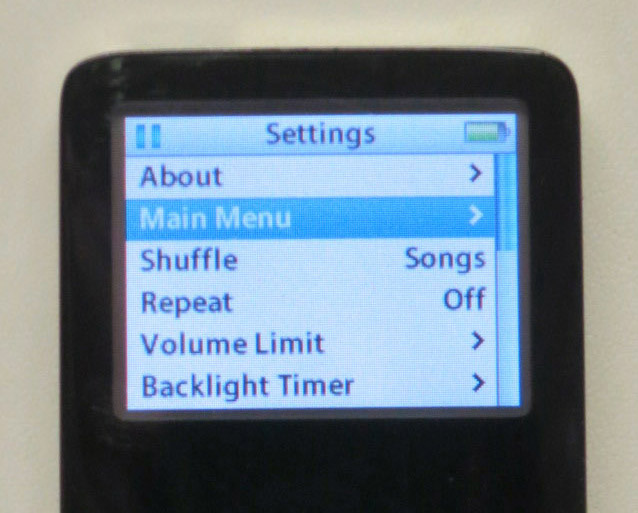
Select Main Menu
Select Main Menu

Now, select Main Menu. What a �confusing name. This isn’t returning you to the main menu, it’s editing the settings for the main iPod menu.

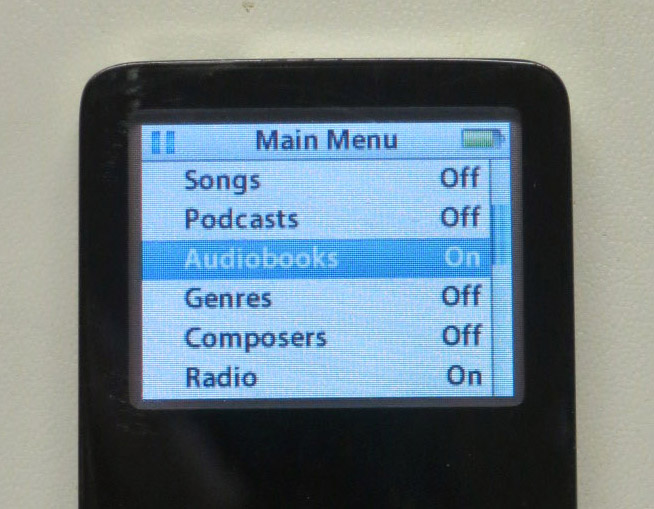
Make sure Audiobooks is On, or has a checkmark.

You may have to scroll down a bit, but you should see an option named Audiobooks. Select it to turn it on. You should see the word Off change to On, or you should see a checkmark appear.

Now, press the iPod menu button twice to return to the iPod menu. You should now see a new item there, Audiobooks. All your audiobooks will be in there.

I really don’t approve of Apple’s policy of hiding menu items until they are needed, or in this case until the user is at his wit’s end, and searches the internet for an answer, and finally has to dig into Settings to enable something that should have been there all along. �Frankly, I’m hoping that this hide-and-seek with the menus was some sort of Steve Jobs quirk, and that it will be laid to rest along with him.

Apple really needs to fix this in the iPod firmware, or maybe in iTunes. If nothing else, when audiobooks exist on an iPod, this menu item should be turned on automatically.

This tip worked for a couple of generations of iPod nano. It should be similar for other iPod models.�

1Password Bookmark Tip for Mobile Safari

Dennis showed the group this tip at this month’s meeting, and promised that the details would be on our web site.

This tip is for iOS (iPhone or iPad) users. Create a bookmark in Safari called “Open in 1Password”. Replace the URL for the bookmark with this snippet of Javascript:

javascript:window.location=’op’+(window.location.href);

When you visit a page in Safari, and realize you would rather open it in 1Password, so it can fill in your logon information for you, invoke the bookmark and the page will re-open in 1Password. The ‘op’ in the script stands for One Password.

This trick only works with the new version of 1Password. Version 4, I believe.


Why you Should Use BCC

Be kind, REMOVE my Email Address, use BCC when forwarding. Say NO to Spammers & computer viruses!

This cutsie graphic going around contains an important lesson. When you send an email to a group using TO or CC, everyone in the group can see everyone else’s email addresses. You might think, So what? We’re all friends.� Yes, but what about when your friend forwards the message on to a few dozen or a few hundred of his friends? Do you really want all of them to have your email address? If any one of those friends-of-friends is infected by a spambot — BINGO, you all start getting spam.

In case you think this is an unlikely problem, it happened to me this Christmas. I received a Merry Christmas email blast from someone I’ve never met, who lives thousands of miles away — a relative of a co-worker. The happy email was addressed to hundreds of people, and all of their email addresses were visible. Shortly after that, I started getting a LOT more spam.

Another reason to use BCC when emailing a group is to prevent an Unsubscribe Storm. �This starts when a large mailing gets some smart-ass, controversial, or off-topic responses. The responders use reply-all, so everyone can see their brilliance. This annoys people who are now getting a lot of messages they don’t want, so some of them also reply to all, saying “Take me off this list”. �At that point, nearly everyone wants off the list, and the volume of messages saying so becomes really alarming.

It sounds funny, but it can get really out of hand. I saw a case where a message like this had a large attachment. The resulting volume rendered heavy-duty corporate mail servers unusable for the rest of the day, and the mess took a while to clean up.

If BCC had been used, then reply-all would only reply to the sender, and no harm would be done.