January 2026 Meeting Topic
You can use your iPhone to scan paper documents into the Preview App on your Mac. This is a really convenient way to get documents into a PDF file so that you can email them, etc.
You can scan either into a new, blank document, or an existing PDF document, in which case your scans become new pages in that document.
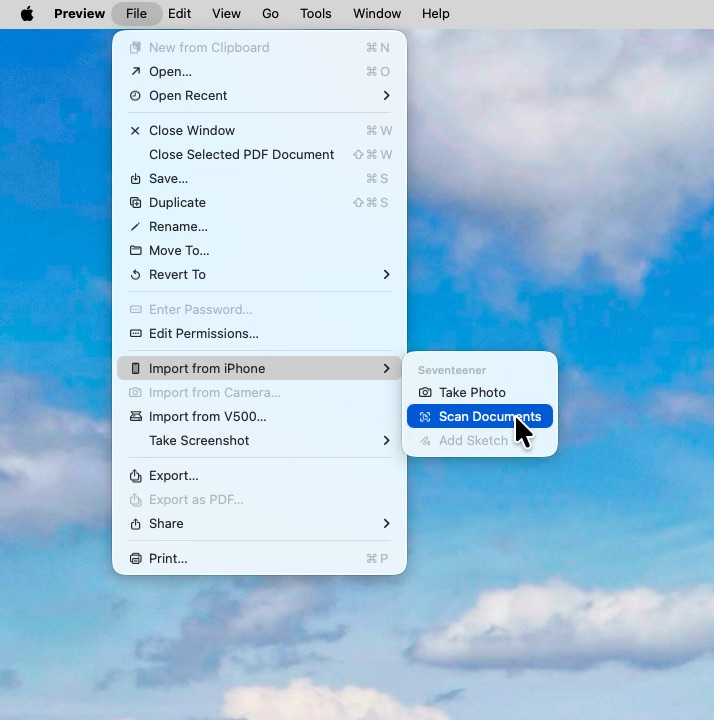
In the Preview App, select File->Import from Phone->Scan Documents.
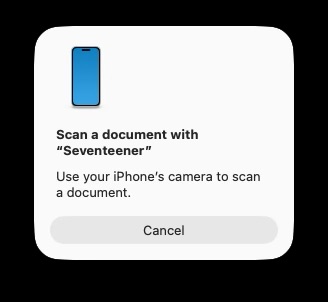
You’ll then see this prompt on the Mac.
Your iPhone will automatically open the camera app as show below.
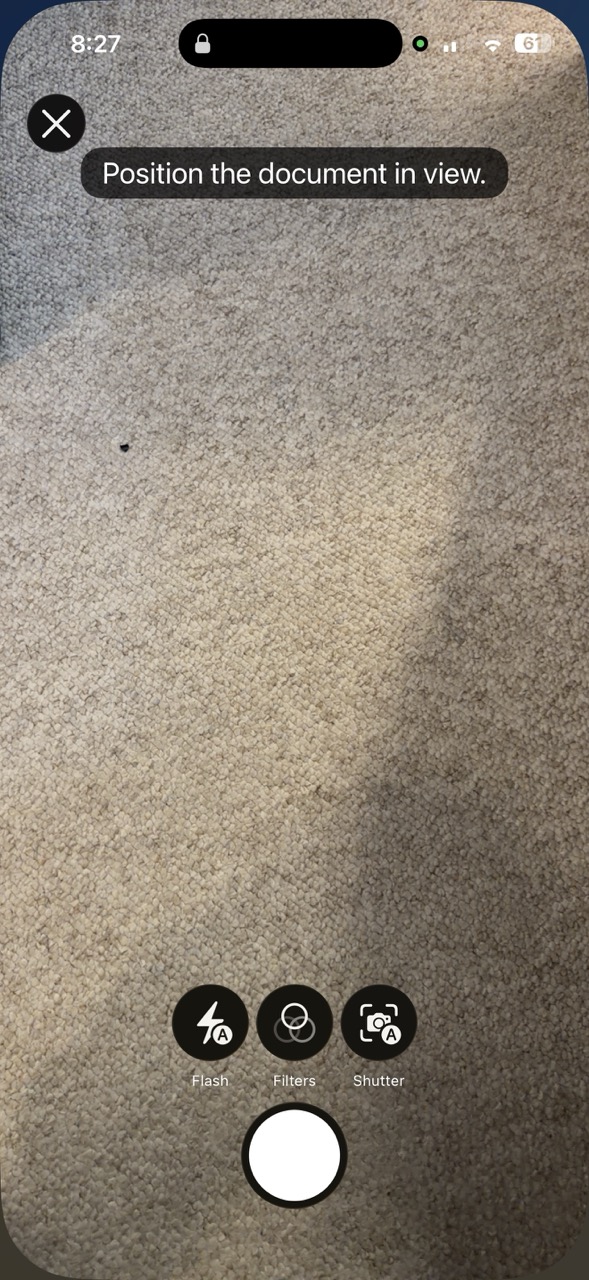
The iPhone automatically finds the document in the camera view and captures the scan when the image is in view and stable. You don’t need to press the shutter button. The automatic shutter can be a bit disconcerting if you are not used to it. If you want to turn it off, the button marked “shutter” will disable the auto-shutter, and you can then take each scan manually.
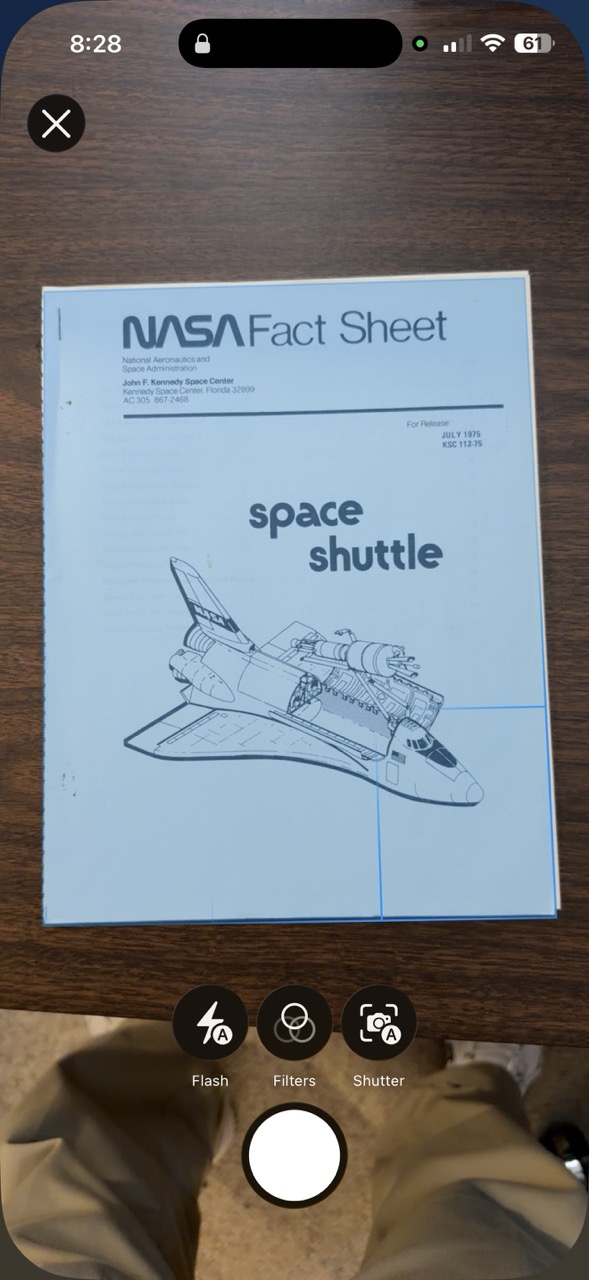
You will have the option to scan multiple pages. There will be a check mark at the upper right. Tap that when you have scanned the last page.
The pages will then automatically appear in Preview on your Mac.
This is very easy and nearly foolproof. Your devices need to be on the same iCloud account, and up-to-date with software, iOS 18 or greater, and MacOS 18 or greater.