Interested in having a FaceTime chat on the big screen? It seems like a good idea to sit in your living room and see your contacts big as life on your TV. However, your Apple TV doesn’t have a camera or a microphone, which are necessary for FaceTime.
Apple has addressed that problem with a feature called Continuity Camera, in which your iPhone’s camera and microphone can be used to extend the capability of your Apple TV.
As usual, there are certain provisos. Your devices must be running recent versions of iOS & TV OS. Operating systems must be at least iOS 17 and tvOS 17. Your devices must be connected to the same network and same Apple ID, yada yada. Your mileage may vary.
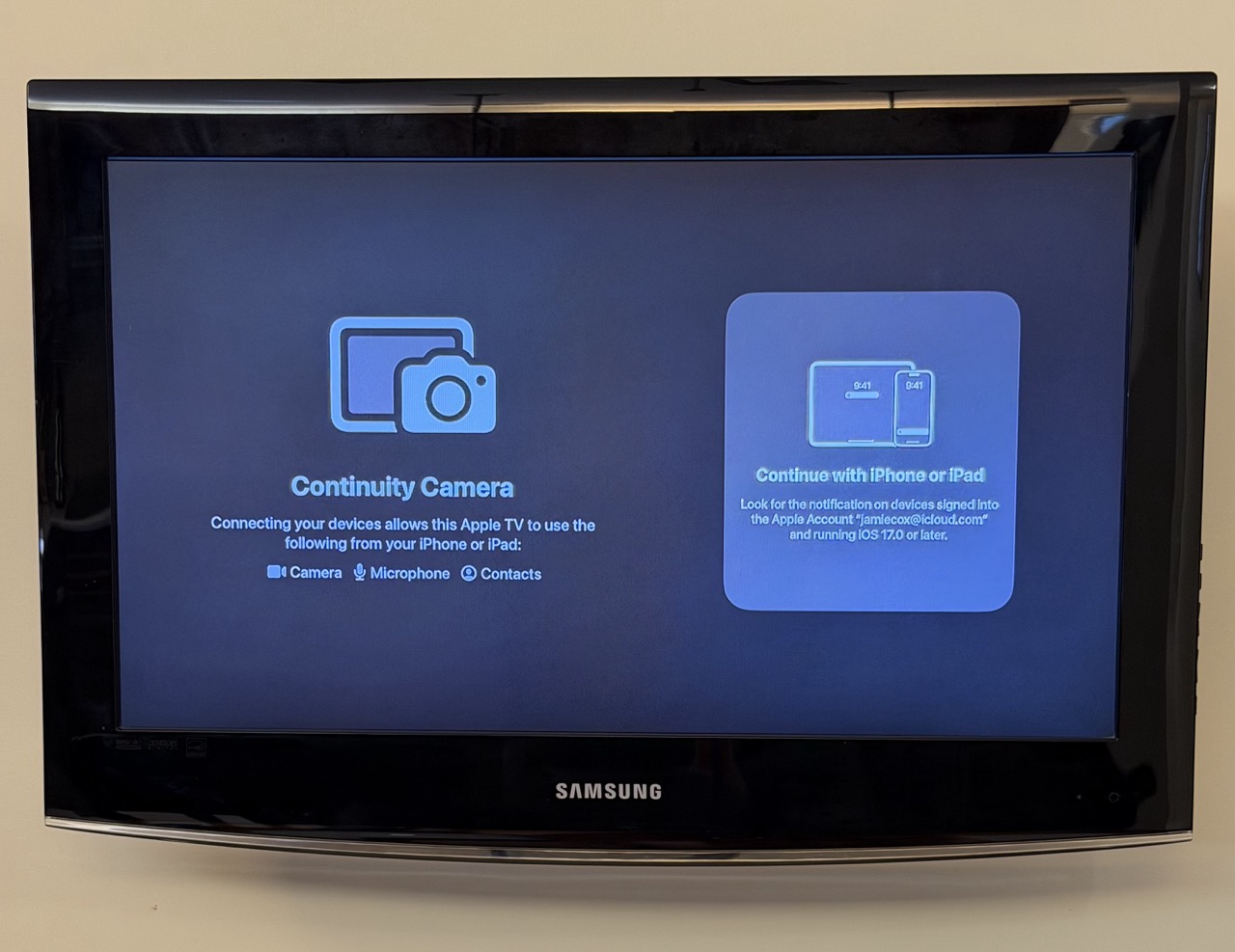
Once you open the FaceTime app on your Apple TV, you’ll see a chance to connect with your iPhone (or iPad).
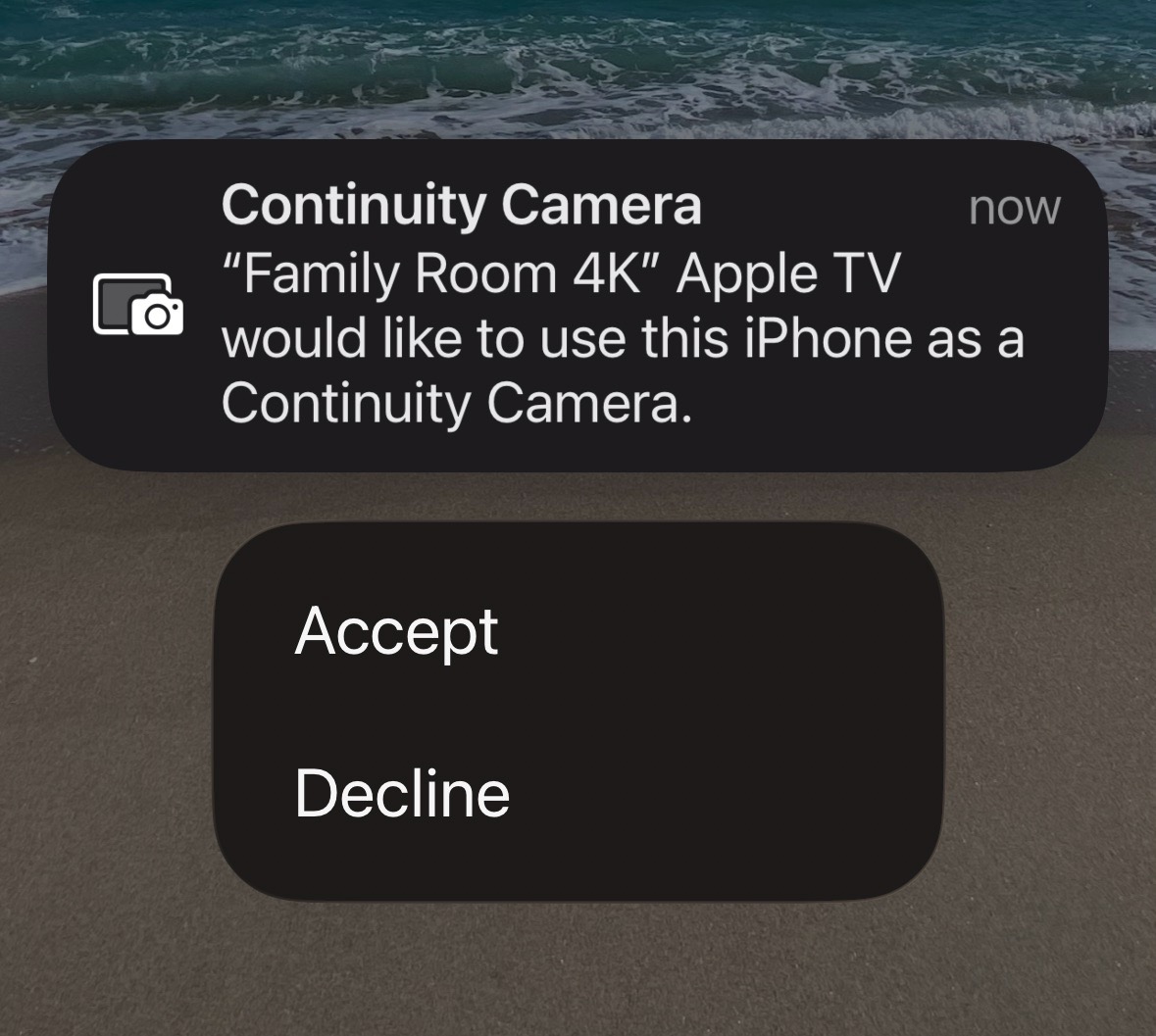
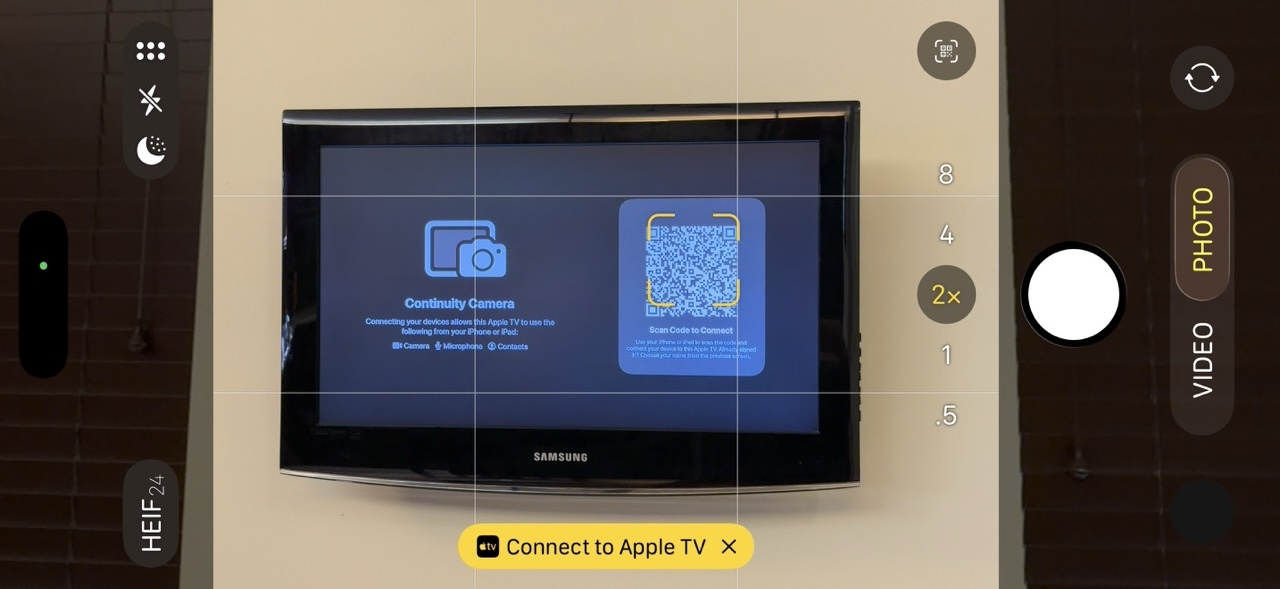
The screen below shows what pops up on your iPhone.
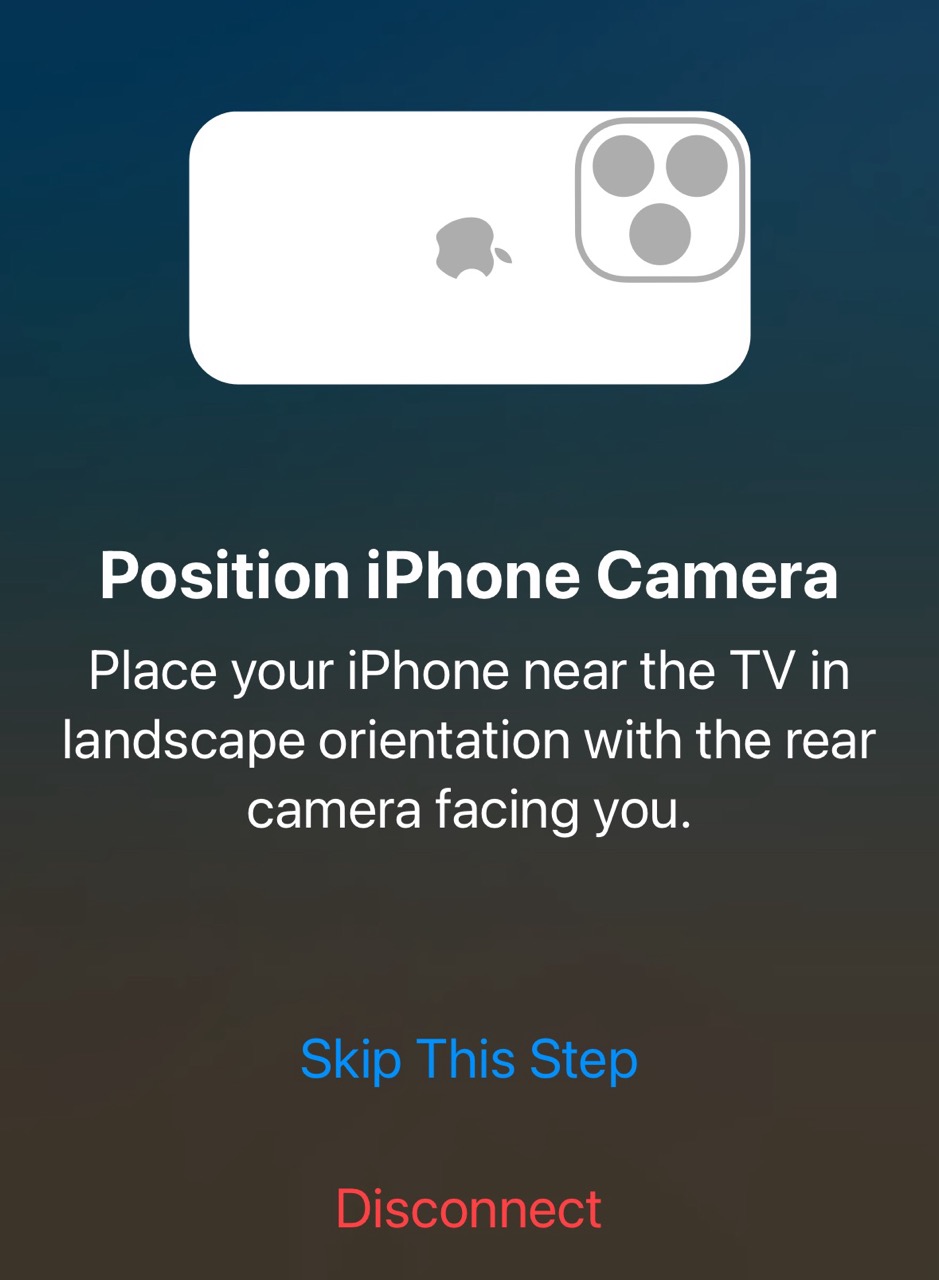
Once you accept, you’ll get the prompt below to position your iPhone camera appropriately for use by FaceTime. This is potentially the hardest part. It’s difficult to get your phone propped up in the right position unless you have some sort of mount or tripod.
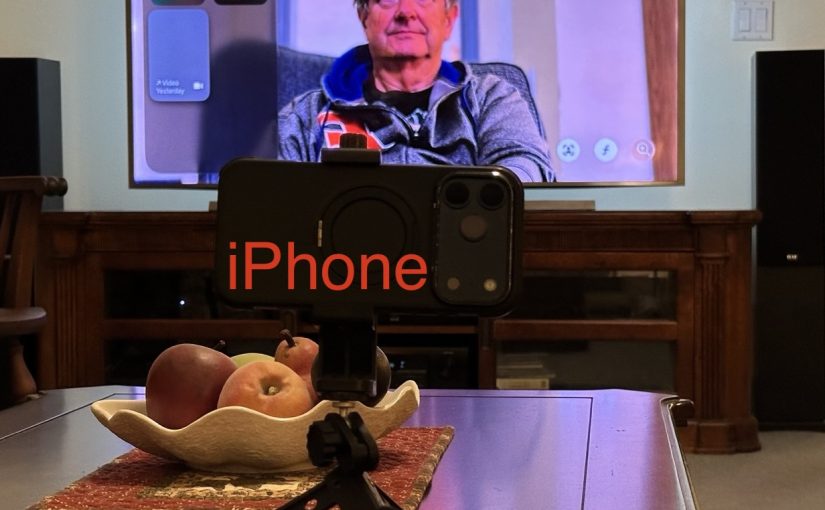
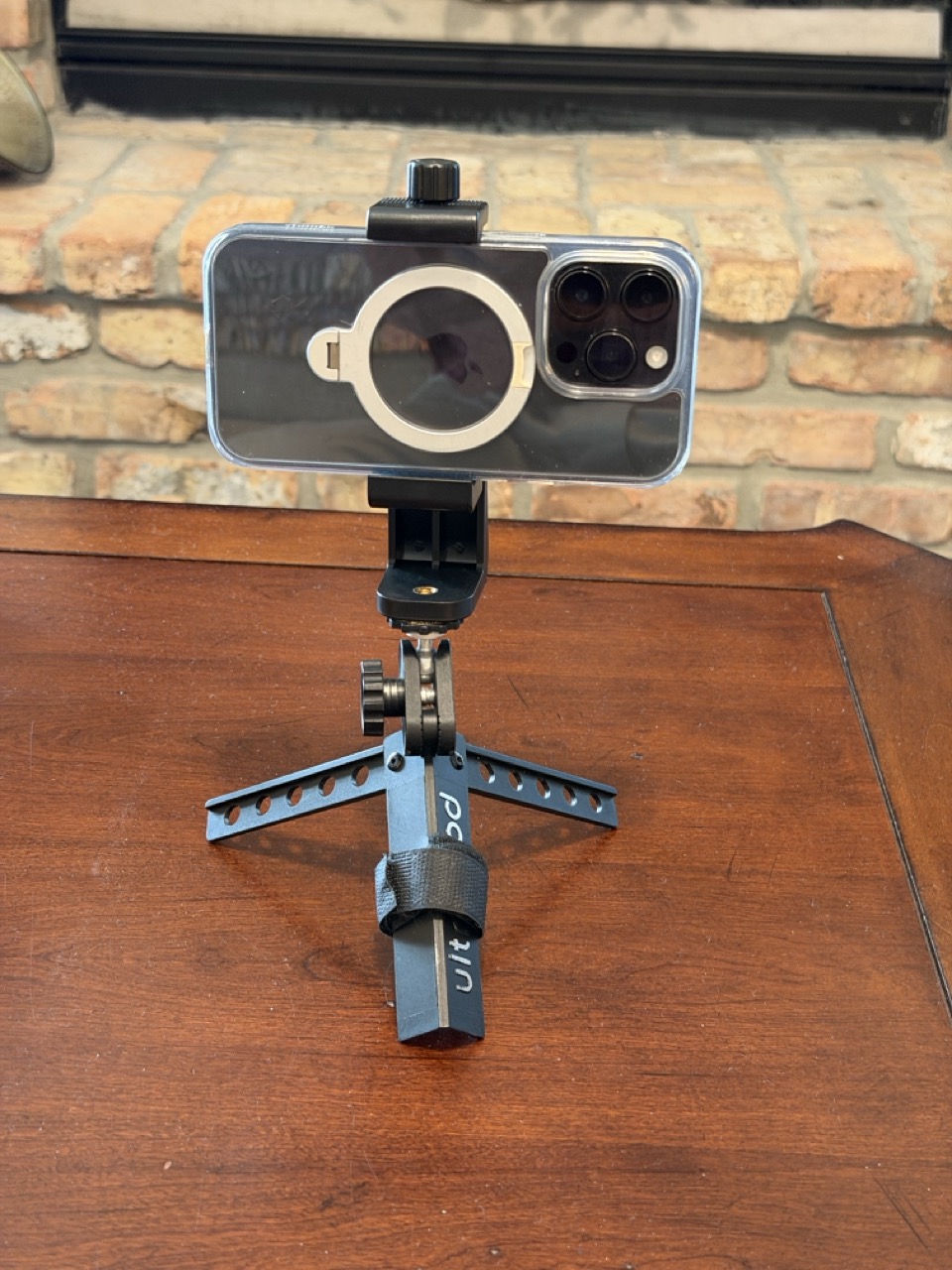
Below is my phone mount on a mini tripod. The tripod had a ball-swivel head, which is what you want to get the camera pointed in the correct direction. This product on Amazon seems to be a very similar setup.
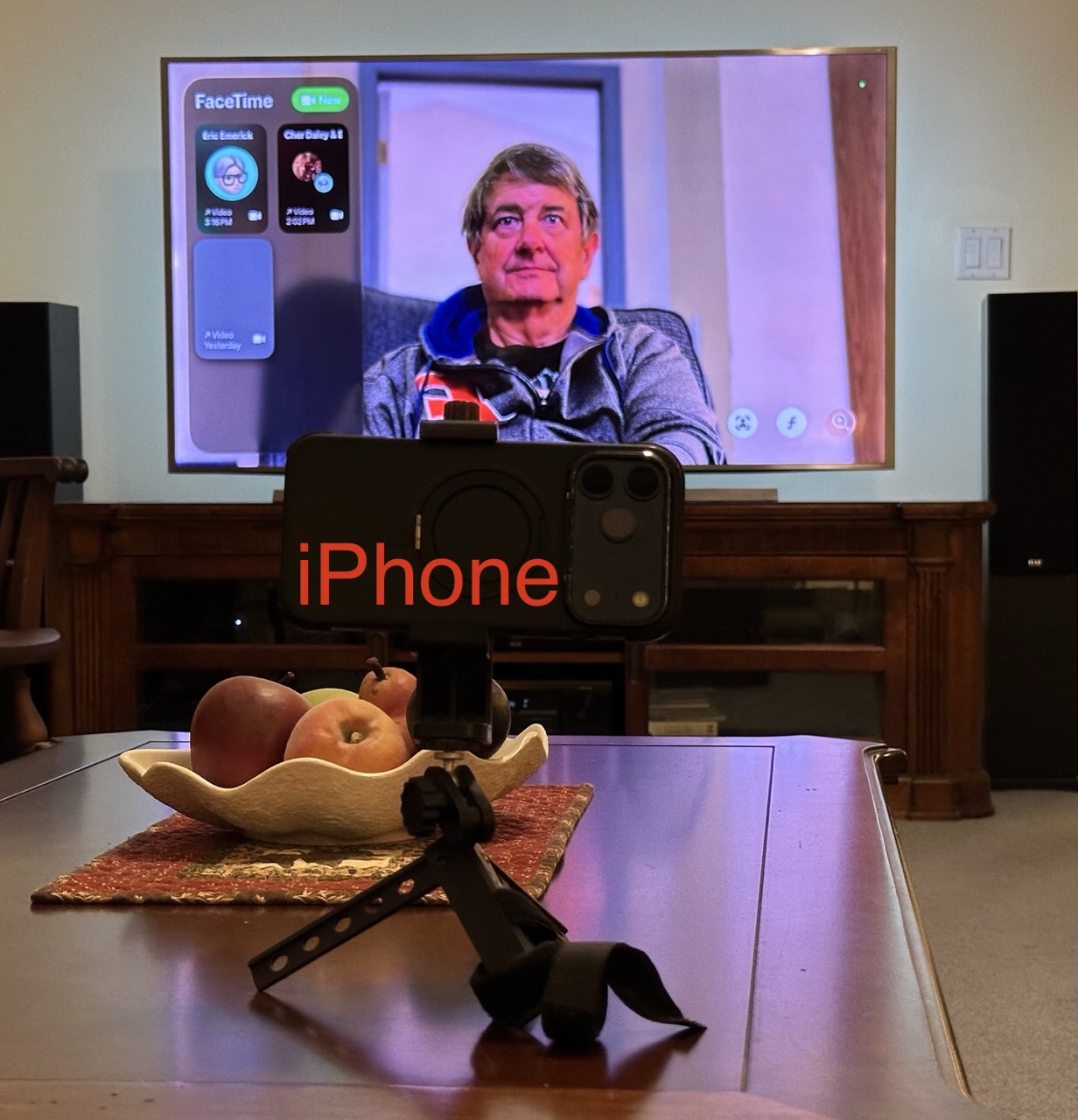
Once you have your phone mounted, you’re ready to FaceTime. Below is what it looks like in a FaceTime call. Since my chair is pretty far from the TV, I placed the iPhone camera on a table closer to me to capture a better image.
Versions of the iPhone from iPhone 11 on, will use a feature called Center Stage, to automatically keep the camera image centered on you, even if you move around a bit.
Problems, etc.
The above is the best-case scenario where everything works as expected.
If your phone isn’t on the same iCloud account as the Apple TV, you are guided to scan a QR code to connect. Frankly, I was never able to get that scenario to work.
Error messages I got:
“There was a problem loading your recent calls. You may need to restart your iOS device or Apple TV.”
“To continue, go to FaceTime Settings on your iOS device, then sign in to your Apple Account.” (I was already signed in and didn’t see any sign-in option in the FaceTime Settings.)
Other Tripods
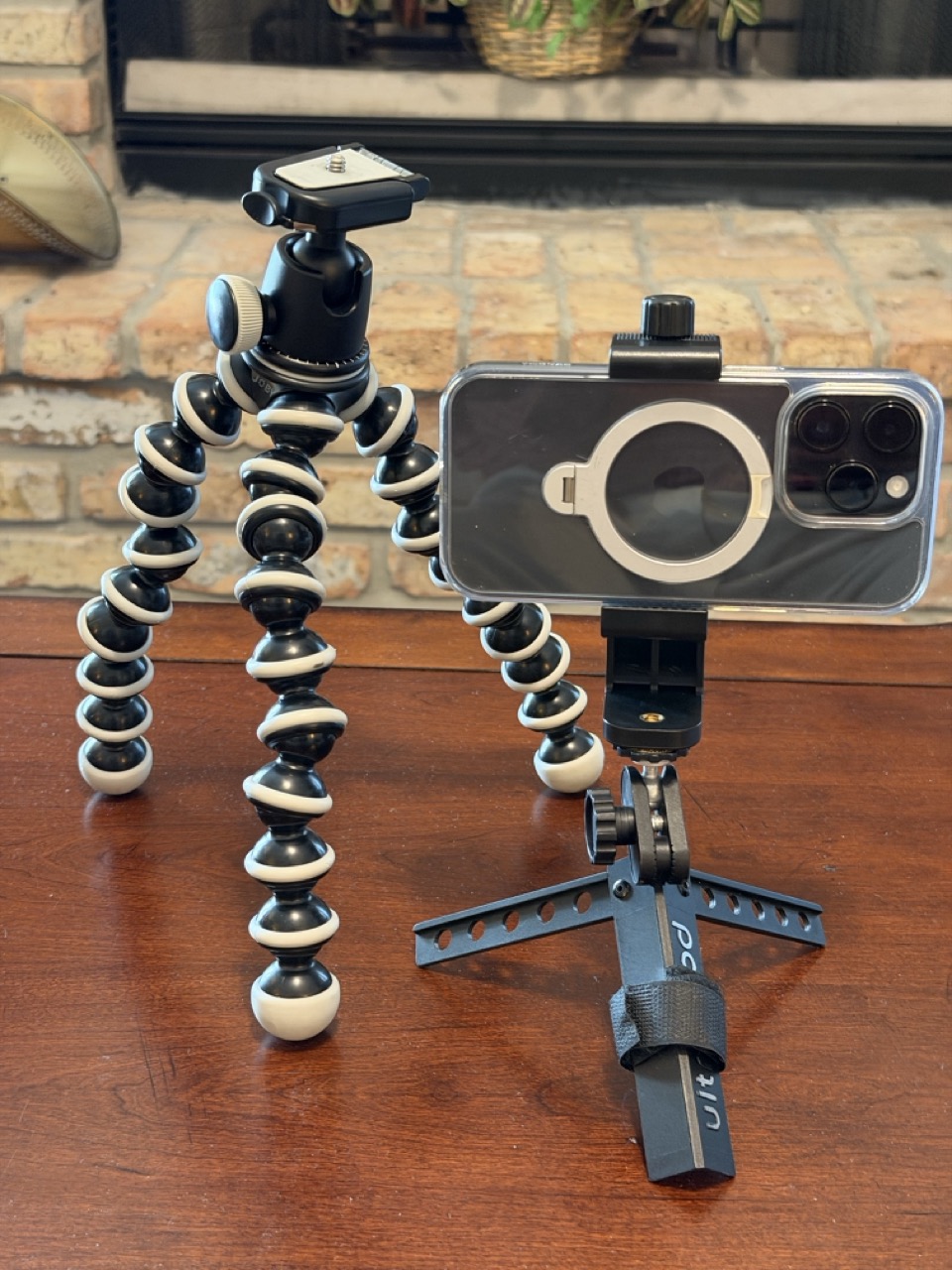
Your setup might work better with a full-sized camera tripod, or something in between, like this Gorilla Pod.
FaceTime with Apple TV is a cool feature, but it does require some patience to get it set up the first time. Enjoy.
At this month’s meeting we are reviewing the announcements from Apple’s World Wide Developer’s Conference Keynote. As usual, MacMAD is providing links so that you don’t need to take notes in the meeting.
“The main practical effect of HDCP has been to create one more way in which your electronics could fail to work properly with your TV.” -Edward Felten, Chief Technologist US Federal Trade Commission
It’s an appropriate coincidence. I’ve been having serious issues with HDMI cables and boxes in my family room TV setup, and today just happens to be International Day Against DRM. (Digital Rights Management)
A Quick Overview
HDMI (High-Definition Multimedia Interface) is a set of interfaces for connecting video equipment. A single cable carries digital video and audio. HDCP (High-bandwidth Digital Content Protection) is the DRM (Digital-Rights Management ) scheme forced on consumers as part of consumer HDMI-capable equipment.
I recently purchased an AV Receiver which has HDMI inputs and outputs. I have been having a lot of issues keeping that working in my setup. Those issues may or may not have anything to do with DRM or HDCP, although they certainly are not helping. (Update: Yes, they were DRM issues.)
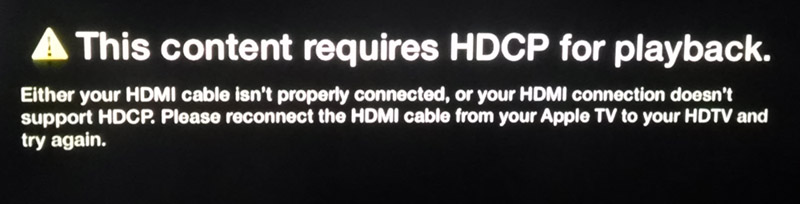
I went to a simpler configuration where my Apple TV is directly feeding my TV set via HDMI. That ought to work, right? And it did work, until I tried to watch something. Then I saw this message:
Displayed by Apple TV
I really don’t know what to do about this. I have tried cycling power to the Apple TV and to the TV. I am using the same HDMI cable that I have used previously. That cable works fine for non-protected content.
So, what content was I trying to watch that was so important that it needed to be protected from unauthorized access? A trailer. I was trying to watch a trailer for a movie from a major studio. These studios are the very people behind the worst excesses of DRM. Ironic, isn’t it. The studios spend a lot of money trying to get trailers out to the public to promote their new movies. And I can’t watch them on my Apple TV because of their own DRM policies.
I want to emphasize that I was not at any point trying to circumvent copyright. I was simply trying to use my consumer electronics as designed.
Here is the fundamental problem with DRM. To the big-money copyright holders nothing is more important than their ownership rights. In the current DRM and copyright environment, no inconvenience or expense for the consumer is too great, as long as it protects the interests of the big studios.
Apple, this is a major usability fail. It’s a serious embarrassment for your product to ever produce a message like this. You need to push back hard on these guys and get this fixed.
Update 7 May 2014: After additional testing, the same Apple TV and HDMI cable was able to play protected content when connected to a different TV (a Samsung). When re-connected to the original Hitachi Ultravision, it again refused to play. This used to work on the Hitachi. Getting a new TV is not an acceptable solution to this problem.
Again, the same cable was used. I doubt any claims that a different cable will fix this problem, unless someone can show that some HDMI cables are not HDCP compliant. I do not believe this is the case. The general rule that cables cause a lot of problems still applies, but I believe if you have a bad cable, you will have other problems besides with HDCP. In any case, I tried various cables with no improvement.
Apple should obviously be motivated to fix this, since customers won’t be buying any more content from the Apple store until this is fixed.
Update 10 May 2014: I called Hitachi, and they said it was an Apple problem. I expected finger-pointing and I got it. I specifically asked if there were any firmware updates for my TV set, and yes, there is one or more, and they may have to do with HDMI. Why didn’t Hitachi volunteer this fact before blaming Apple? Personally, I blame Hitachi, Apple, Intel (developer of HDCP), Denon and especially the MPAA. When you have these type of problems with the MPAA’s DRM crap that they forced down our throats, is the MPAA going to come to your house and fix your TV? Not likely.
I am working on getting this firmware installed. To do so, I need to buy a now-obscure and obsolete MMC memory card. (MMC cards are very similar to SD cards, but not quite compatible.)
Just today, I got a nice email from PBS announcing their streaming video service — it’s available on Apple TV, but I can’t watch it, because it uses DRM. PBS isn’t really all that “Public” is it?
Update 20 May 2014: I got an MMC card, and updated the firmware on my TV. This did not make any difference. It was a long shot, since I didn’t have much information on what the firmware update was supposed to accomplish. I have now ordered an HDMI splitter, which is rumored to override, defeat or eliminate HDCP.
Update 22 May 2014: The problem appears to be solved! I bought an HDMI splitter. The reviews for this device indicated that many people found that it eliminates HDCP. I am not actually splitting the signal. I just inserted the splitter in-line between the Apple TV and the TV, and I could then watch any content from the Apple TV.
I then moved the splitter to be between the Denon AV receiver and the TV, with the Apple TV’s HDMI output going to the Denon. Again everything is fine. This is the configuration that had been working before the problem started, except for the addition of the splitter.
Lessons Learned
If you have a Denon AV receiver with the display going blank after a few seconds, that’s Denon’s way of saying you have an HDCP problem. At least the Apple TV provided an explicit message. When I called Denon about this problem, they didn’t even hint at DRM or HDCP as the issue — they just said my cables must be bad.
If you have any problems with HDCP, don’t expect any meaningful help from the manufacturers of your gear. They’ll just send you down an endless rabbit hole of trying different cables, plugging and unplugging things and doing factory resets, etc.
Run, don’t walk to get this splitter, or something similar that eliminates the problem. When you buy the splitter, don’t forget, you will need one more HDMI cable.
Once again, DRM is demonstrated to annoy the hell out of legitimate, paying customers, while proving to be a trivial barrier for determined content pirates. For the price of one Blu-ray movie, I obtained a device that eliminates DRM as an obstacle to copying content.
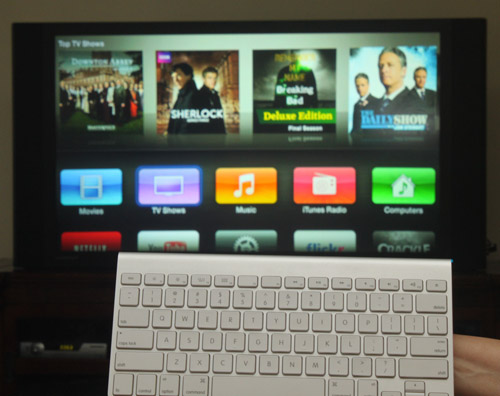
I have been using a Bluetooth keyboard with my Apple TV 3. With recent (2013) updates of firmware for the Apple TV, the Bluetooth keyboard feature has now become useable. The keyboard is really great when you want to search for something. You can actually type instead of using the painfully slow on-screen keyboard.
I �have been using the Apple keyboard that came with my iMac. I don’t like it for computer use, so I’m using a USB keyboard on the computer, but this keyboard is an ideal remote control for the Apple TV. It’s fairly compact and fits on the sofa table. You don’t have to use an Apple keyboard. Any Bluetooth keyboard should work.
The keyboard mappings felt so natural, I guessed them the first time, but here they are:
Menu button = esc key
Select button = enter key or space bar
Arrow buttons = arrow keys
My Apple TV now seems to remember the keyboard pairing indefinitely. I have to wake up the keyboard maybe once a day with a tap of the power button. Range is at least 12-15 feet – if you’re sitting back further than that, you need a smaller TV. 🙂
One problem I ran into — I don’t think it was a keyboard problem per se, but I created an account on Crackle with a gobbledegook password. When I entered this password on Apple TV, it wouldn’t accept it. I eventually changed the password, and then it was accepted on the Apple TV. I don’t think this problem is �specific to Crackle, either. I suspect that the Apple TV software just filters certain characters. Some special characters are okay, but I’d watch out for ^ and ~ (caret and tilde), as those were in the rejected password.
�Update March 26: After Apple TV software update 6.1 was installed on my Apple TV, my Bluetooth keyboard stopped working. It also wouldn’t show up as available to pair. I restarted my Apple TV (Settings/General/Restart) and tried again, and I was able to get the keyboard to pair. You should also try just turning Bluetooth off and then back on, on the Apple TV. (Click where it says Bluetooth Searching…). Pairing has always been kind of finicky on the Apple TV.
The Bluetooth controls are under Settings/General/Bluetooth.
Update May 10, 2014: One cool thing about using the�Bluetooth keyboard: it gives �your Apple TV an RF remote control that can work without direct line of sight. So, you can use your Apple TV even if it is concealed in a cabinet, or on the other side of a wall.